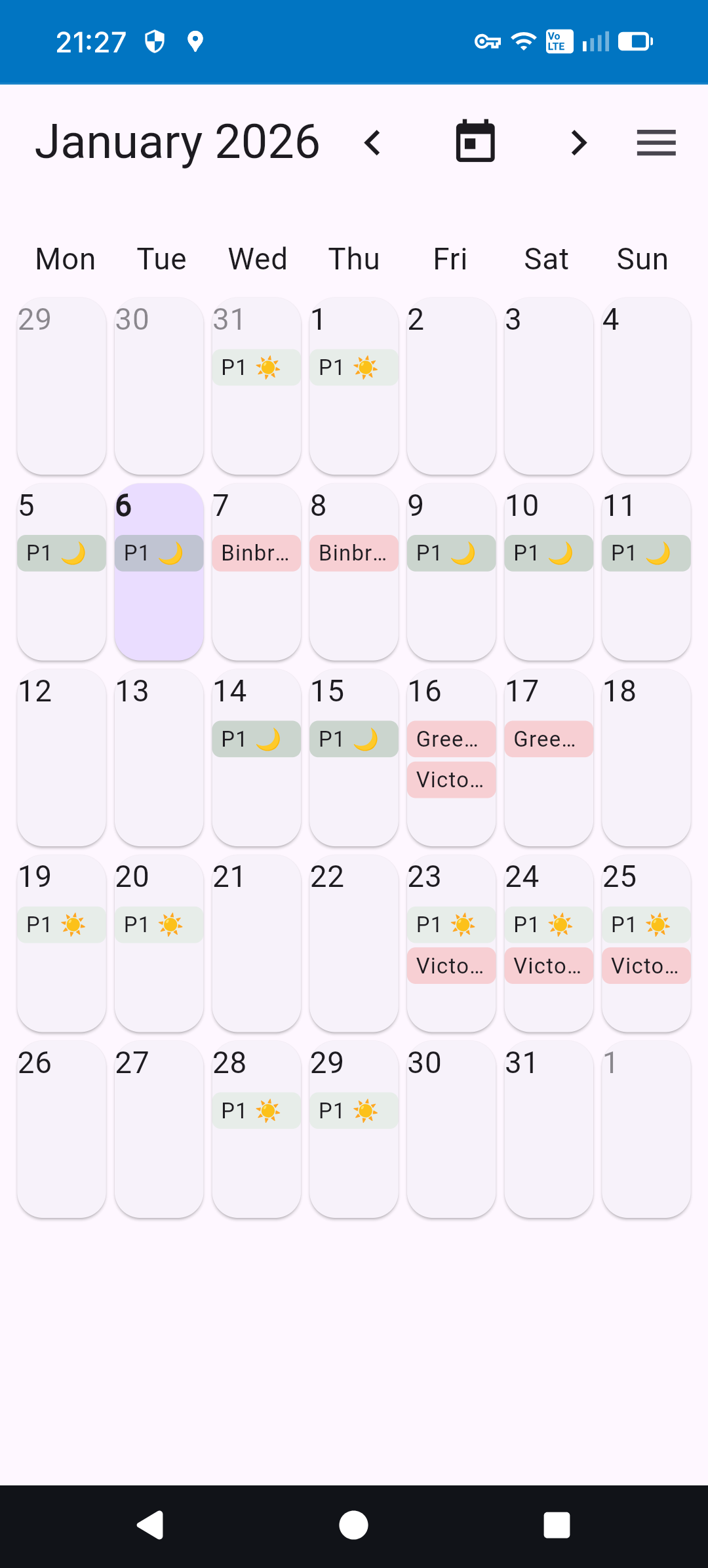
Your schedule, at a glance.
See your full platoon rotation with a clean calendar view.
The app for HPS staff to view schedules, post shifts, and coordinate trades — all in one place.
Built for HPS staff who want shift trading to just work.
See your full platoon rotation with a clean calendar view.
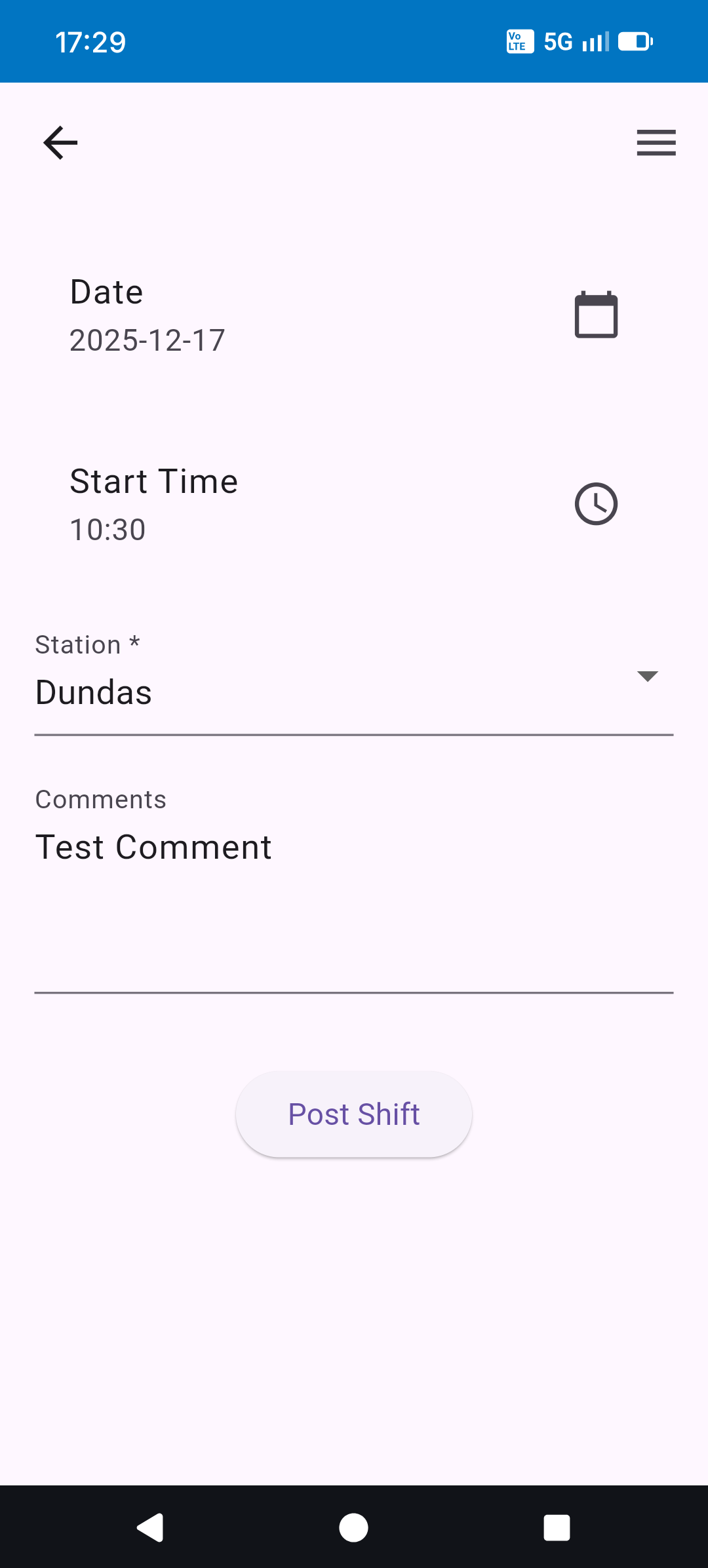
One tap to post the shift you need covered.
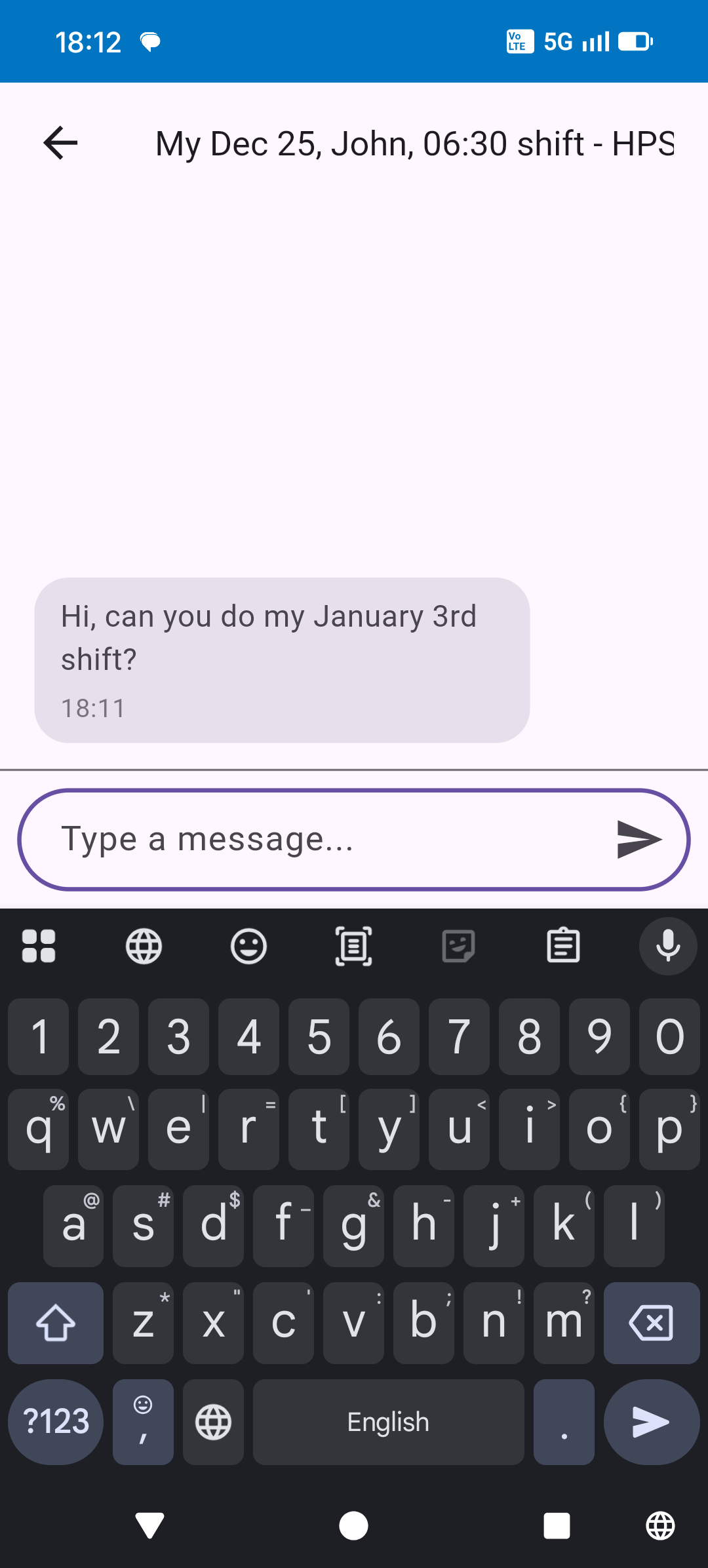
Message directly about trades, all in one thread.
This app is exclusively for HPS (Hamilton Paramedic Service) road medics, not management or supervisors, nor other paramedic services.
You will need to create an account and wait for approval from an administrator before you can access the app.
You must be a working medic at HPS to be approved.
It is important you use your real name as it appears on the HPS scheduling manager when you register, as we verify names against the schedule manager information. Names that do not appear in the schedule manager might be rejected or take longer to approve. If you identify by a different name than the one in schedule manager, please contact us (email at the bottom of this page) to prevent delays in approval.
After creating your account, an administrator will review your request and approve it if you're a verified HPS staff member. You'll receive an email notification once your account is approved.
Your data is stored securely in Firebase (a Google managed product). Login information (via Google, Apple, or email/password) is managed securely and not viewed or saved by the app or the developer.
We never share your information with third parties, COH or HPS management.
Most importantly, the first rule of data security is to collect minimal information. The app uses the minimum information possible to provide the functionality. For more details, see our Privacy Policy.
The app does not actually do the shift change in the HPS Schedule Manager — only the scheduling staff can do that.
The app is used to find a person to shift with, after which you still need to log into Schedule Manager and put the shift change request the usual way (similar to finding someone in the Facebook group).
The shaded days are when your platoon is working: for platoons 1-4, yellow for days and purple for night. For platoons 5/6, green shows the days your platoon is working (no days/nights for platoon 5/6, so only one color is used).
Red shift cards are shifts that other people need off.
Blue shift cards are the shifts you placed in the calendar.
Orange shift cards are PDD/APR (both other people and yours).